
Customer support
All registered users can open a support ticket and track its status and responses from our team.

CONNECT HELPDESK / WINDOWS CLIENT
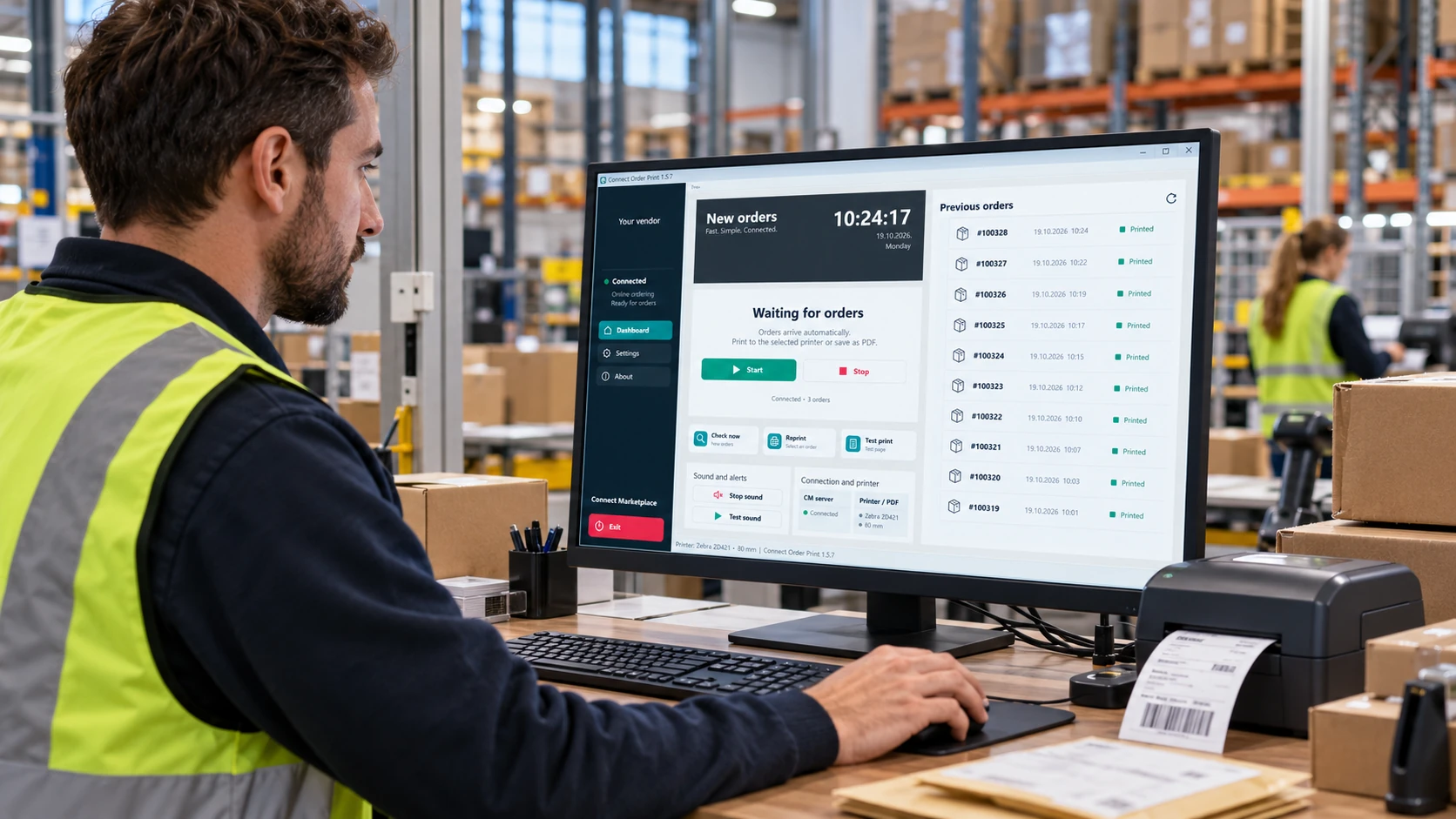
Connect ORDER Print connects your Connect Marketplace store to a Windows computer at your point of sale. It retrieves new orders, plays an audible notification and automatically submits them to your selected printer or saves them as PDFs. It is designed for Heavy Duty stores, restaurants and teams that need fast order handling.
 Connect ORDER PrintVersion 1.5.7 · ZIP installation packageDownload Windows clientInstallation, connection and daily operating instructionsDownload detailed PDF instructions
The Windows client checks for new orders for the paired vendor at regular intervals. A device can access only its own vendor's orders. The administration panel defines which order statuses qualify for automatic retrieval.
When an eligible new order arrives, the application records it in its local journal and plays a notification if sound is enabled. Your browser can be closed; the application and computer must stay running, with a working server connection.
The order is submitted to the selected Windows printer, or saved as a PDF when you select PDF file (no printer) as the output. Without a selected output, the order stays queued. Formats include 58, 80 and 82 mm, A4, A5 and custom dimensions. Physical printing depends on the printer and its driver.
Open an order from history to review items, options, notes, totals and customer contact details. If the administrator enables client status options, you can change the order status from its tab.
Prepare a Windows computer with .NET Framework available, an internet connection and, for paper output, a correctly installed Windows printer. Initial pairing requires the API address and device key from your vendor administration panel.
Use the official download above. In Windows Explorer, choose Extract all and extract the entire package into a separate folder. Do not run the installer directly inside the ZIP preview.
Run Install.cmd from the extracted folder. The installer copies the application for the current Windows user and creates a Connect Order Print desktop shortcut with its icon. It then opens the application. If Windows blocks it, verify the download source and contact support; do not disable computer protection. The package also includes Instructions.html with English getting-started instructions. New installations start in English; an existing language selection is preserved.
Sign in to Connect Marketplace administration and open Connect Order Print, Connection tab. A marketplace administrator selects the vendor where needed. Enter a recognisable device name, select statuses for automatic retrieval and create the device. Copy the displayed API address and the device key shown once. Each vendor can have one active device; revoke the old one before replacing it.
Open Settings in the Windows application and enter the exact API address and device key shown in administration. Use your store's HTTPS address; do not guess the endpoint. Choose the language, Windows printer or automatic PDF folder, and paper format. Save the settings.
Choose Test print and Print test page. Check paper width, accented characters, margins and readability. Then choose Start and check the server connection and printer/PDF indicators. Check now performs a manual check for new orders.
Configure settings before your shift. Opening Settings stops automatic polling. After saving, check the output and select Start again.
| Setting | What to select or check |
|---|---|
| API address and device key | Administration supplies the exact vendor/device connection details. Use HTTPS in production. The local Stage HTTP setting is for development and should remain disabled. |
| Language | Select an available application language. Refresh languages retrieves the list from the server. Item and option names depend on the translations available in the store. |
| Windows printer / PDF | For paper output, select an installed printer. For automatic PDFs, select PDF file (no printer) and a folder the current user can write to. Download only — no printer keeps orders queued and does not automatically create PDFs. |
| Paper format and dimensions | 58 / 80 / 82 mm, A4, A5 or Custom. Match page length, margins and text size to the paper and driver. Longer orders may span multiple pages. |
| Number of copies | From 1 to 5. Increasing this setting intentionally produces multiple copies of the same order. Check it before starting your shift. |
| Check every (s) | From 3 to 300 seconds; the initial value is 5 seconds. A shorter interval means more frequent checks, not instant push delivery. |
| Sound notifications | Once, Repeat or Off. Test sound checks the speakers. Stop sound stops the current notification without stopping order polling. |
| Automatic start of polling | This setting starts polling when you open the application and a device key exists. To open the application after Windows sign-in, separately copy the desktop shortcut to shell:startup (Win + R, enter shell:startup). |

Turn on the computer and printer. Check paper, network and the selected output. Open Connect Order Print and choose Start unless polling is already active. Use Check now for an additional manual check.
Click its row or arrow in history. Each order opens in its own tab. Review items, selected options, notes, contact details and totals before preparing or handing over the order.
Delivery and payment displays the actual payment method on a coloured badge. Personal pickup has a green badge and hides the customer's address. For delivery, the blue Customer address badge displays the delivery address. Each payment option has a consistent colour; always read its text as well. The payment method label is not confirmation that an order has been paid.
Select the current status at the top of the order tab, then choose an available status. These are the options enabled by the administrator. The change is saved on the server and may trigger normal store notifications. Select a status only when it matches the order's actual progress.
Use Manually print copy only when an additional copy is needed. The application asks for confirmation because the action may create another print. Open PDF is available for PDF output. Close tab closes the view without deleting the order.
Stop stops periodic polling. Stop sound only silences the notification. Close the application when finished. When it is closed or the computer is asleep, this device does not retrieve or automatically print orders.
Check that the application is running, Start is selected and the computer is awake. Check the internet, API address and active device key. In administration, check the vendor, selected order statuses and whether the device has been revoked. Older orders do not automatically become new jobs on first pairing.
Check the selected Windows printer, USB/network connection, power, paper and Windows print queue. Repeat only the test print first. If an actual order says Submitted, check whether it already printed or is waiting in the Windows queue before creating an extra copy.
Inspect the physical output, Windows queue and administration report before retrying. An administrator can manually mark it checked or request another copy. Do not retry blindly or delete the local journal to force another attempt.
Check the automatic PDF folder, the current user's write permissions and available disk space. Open the existing PDF from order details when available. If a file is missing, check the recorded job outcome first.
Match the paper format and dimensions to the printer driver. Check margins and font size, then print a test page. A thermal printer's printable width can be smaller than its nominal roll width.
Check Windows volume and the audio output device. Choose Test sound and ensure the notification setting is not Off. Opening an order stops its current sound notification.
On the same computer, let the current job finish, close the application, download the newer official ZIP and run Install.cmd again. Settings and the local journal stay in the user's folder. Before changing computer or key, reconcile existing jobs with the administrator. Do not blindly copy settings or journals between Windows users.
If installation, connection or printing does not work as expected, contact Connect Marketplace support. Telephone: +385 1 35 35 200. Email: info@connect.hr.
Store and device name, installed package version, relevant order number, time of the problem, exact error message, printer model and selected paper format. If needed, attach a screenshot with the device key and customer personal information hidden.
Tell support explicitly if you do not know whether the order already printed. Keep the local journal and check the paper output and Windows queue before authorising an extra copy.
Guide updated: 19 October 2026 · Windows package 1.5.7